How to convert a Word document to LaTeX
There is no single best way to move a .docx into LaTeX. The right method depends on whether you care most about text structure, equations, or the visual layout. This guide compares three practical routes, including when our converter is not the right tool.
No credit card needed. For longer PDFs, the first 3 pages are converted so you can check the quality first.
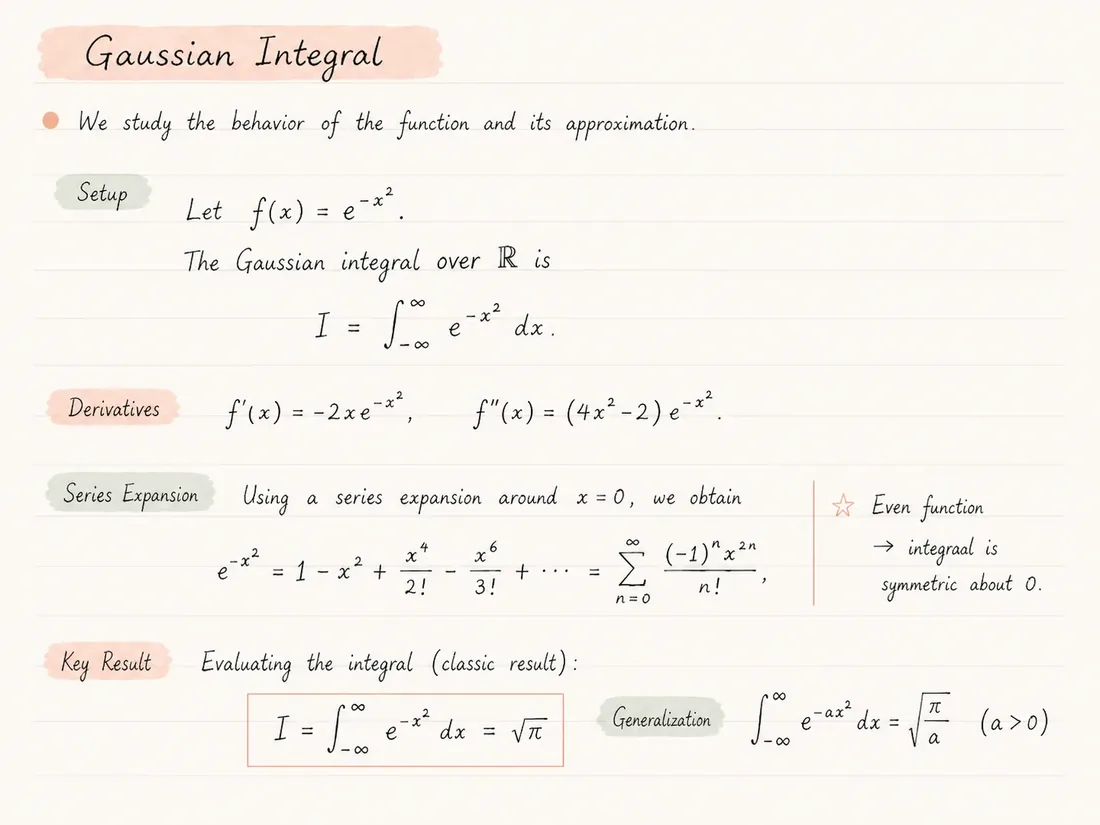
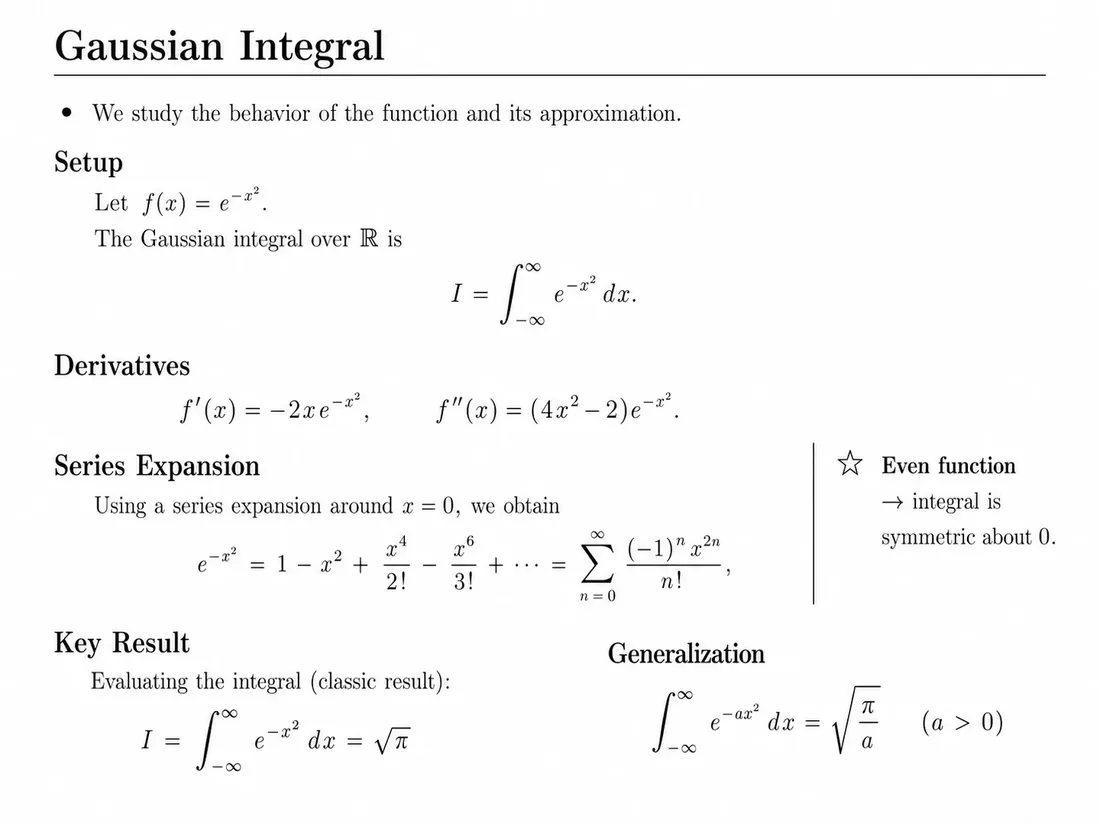
Which method keeps what
A rough guide to what each route usually preserves:
Pandoc
Best for structure: headings, lists, footnotes, emphasis and many native Word equations. Weaker on complex tables, text boxes, equation images and layout.
Word equation export
Best for individual formulas. You copy equations one at a time, so it does not help with the rest of the document.
PDF → document-to-latex
Best for visual fidelity and mixed content: rebuilds text, equations and tables from each page with a compiled preview. Costs pages after the free trial and loses comments and tracked changes.
Why people move from Word to LaTeX
A journal or conference requires a LaTeX template, but the paper was drafted in Word with a coauthor.
A thesis started in Word has outgrown it: cross-references, numbered equations and a long bibliography have become hard to manage.
Lecture material or exam questions written in Word should move to a LaTeX workflow that is easier to version and reuse.
Three ways to convert Word to LaTeX
- 01
Pandoc (free, command line): run pandoc input.docx -o output.tex. It keeps headings, lists, emphasis, footnotes and many Word equations, and produces clean source. Layout, complex tables and text boxes are simplified.
- 02
Word's equation tools: in recent versions of Word, equations can be switched to LaTeX format and copied out one by one. Useful when you only need the formulas, not the whole document.
- 03
Via PDF with document-to-latex: export the document as PDF (File → Save as → PDF), then upload it. Every page is rebuilt from what is visible, including equations that Pandoc misses, with a compiled preview to compare against the original.
- 04
Whichever method you use, compile the result and compare it page by page with the Word document.
- 05
Move the content into your target template (journal class, thesis template) as the last step.
When the PDF route is the better choice
- Equations were inserted as images or with old equation editors that Pandoc cannot read.
- You only have the PDF of a Word document, not the .docx itself.
- You want a side-by-side check of every page instead of trusting a silent conversion.
- The document mixes scanned pages, screenshots and typed text.
- You need an Overleaf-ready project rather than a single .tex file.
When to use Pandoc instead
- For long, text-heavy documents with clean Word structure, Pandoc is free, fast and preserves headings and footnotes directly from the .docx.
- The PDF route rebuilds what is visible. Word comments, tracked changes and hidden metadata are not carried over.
- Citations from Word's reference manager or Zotero become visible text; export the bibliography separately as BibTeX.
- Neither route reproduces Word styles one to one. Expect to adjust spacing and fonts to the LaTeX template.
Common questions
Can I upload a .docx file directly?
Not at the moment. Save the Word document as PDF first; that keeps the visible layout and equations, which is what the converter reads.
Is Pandoc good enough?
For many text-heavy documents, yes. Try Pandoc first if you have the .docx and the document has few complex equations or tables.
Will my Word equations become LaTeX math?
With the PDF route, equations are rebuilt from how they look, so it works even for old equation-editor objects or images. With Pandoc, it depends on how the equation was inserted.
What about my bibliography?
Export your references from your reference manager as a .bib file and connect it to the LaTeX project. Neither method recovers a reference database from the text.
Can I get the result in Overleaf?
Yes. The PDF route produces a project ZIP that opens in Overleaf with one click.
Keep exploring
Continue with nearby converter pages, pricing, or the product overview.
Convert, compare, then edit
Upload a PDF, inspect the generated LaTeX render beside the original, and review before submitting or sharing the result.